Contents
Resolving the Action Required Status in Fleet
Introduction
A small number of automated email notifications can be sent to Fleet Managers in the event that critical issues are identified by our systems.
Enabling Email Notifications
To enable email notifications, users must have a Fleet set up in Django and be assigned as a user of that fleet.
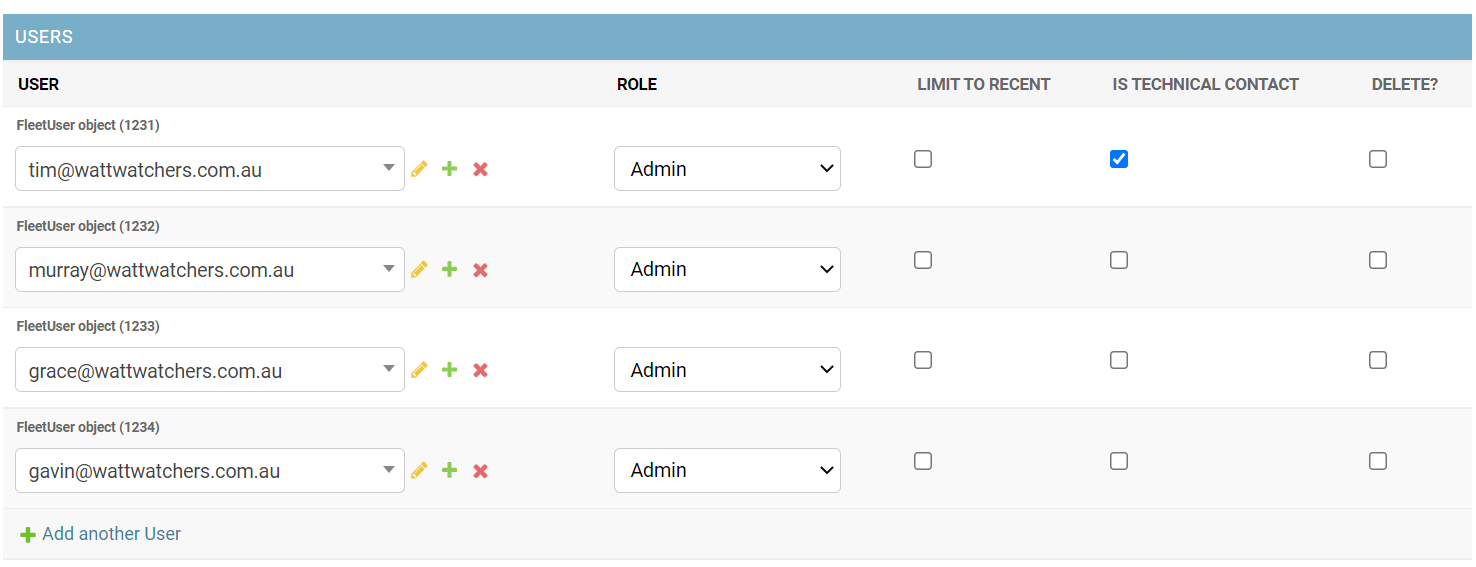
Open the Fleet in Django, and select the users by enabling the “Is Technical Contact” option enabled for the relevant user(s). Make sure to SAVE any changes in Django before navigating away from the fleet.
In the following example, tim@wattwatchers will receive the email notifications, but other users will not.
Email notifications can be sent to internal or external email addresses and are suitable to enable for Fleet Managers who are taking an active role in monitoring their devices.
These notifications are not for normal end-users who would normally access data via the Dashboard or MyEnergy mobile applications.
Available Email Notifications
Modbus Data Alert
Triggered for devices that have potential Modbus wiring or hardware issues identified within the last 24 hours.
Two different failure modes can be identified:
- Modbus-capable devices that have been installed within the last 24 hours and that are currently live (reporting energy data correctly), but for which no Modbus data has ever been reported.
- Modbus-capable devices that are currently live and have reported Modbus data in the past, but the latest Modbus data is timestamped within a 26-3 hours window. The 2 hours buffer attempts to reject false-positive, where a device might be catching up as part of normal operation within a low-connectivity environment..
This script is run each day at 10 am AEST and any email notifications are sent 15 minutes later.
This is useful for alerting Fleet managers for any issues in a fleet of billing devices that might result in lost or missing data from Modbus devices like the PMC-220/340, if the device loses its connection with the attached Modbus device. This might be due to a wiring issue between the Auditor and PMC meter or other Modbus device, or that the Auditor may be online but the Modbus device has tripped or been switched off.
Example Email
Issues have been found with your Wattwatchers devices
Hi NAME,
We have identified potential issues with some of your devices, which may need your attention.
The details of the issues are listed below. Please review and contact support if you require further assistance.
Regards,
The Wattwatchers Team
| Device |
DD12345678901 DEVICE NAME |
| Fleet(s) | FLEET NAME |
| Status | Action required |
| Details | We have detected a potential Modbus issue related to DD12345678901. The device last reported Modbus data on 2022-05-05 00:00:00 AEST. |
Suggested resolution actions
- Also refer to How is Modbus data captured?
- Upgrade the device to the latest firmware. Version 48.1.0 and above has improved Modbus reliability.
- Re-send the latest firmware to the device to force it to reboot and it may bring the Modbus communications back online.
- After a reboot, check DMS to confirm if the _option field:
- If the DMS _option field is blank, the Modbus board has not been detected. Reboot or power cycle the device to see if this resolves the issue.
- If the DMS _option field has the full string (eg: "IMB/PMC-340B") then the Modbus interface is working and the external Modbus device has been detected successfully. The issue may be with the Modbus device (not the Auditor) or the Modbus communications cable.
- If the DMS _option field has only the "IMB" or "2SW+MB" then the Modbus interface is working but no external Modbus device has been detected. The issue may be with the Modbus device (not the Auditor itself) or the Modbus communications cable.
- Check the status of the device in Fleet to confirm if it is online and if auditor CT data is being received as expected.
- Check for any missing data using https://dev.wattwatchers.com.au
- Inform the Fleet Manager that they may need to visit the site to confirm if the Modbus device is online and operating normally.
- Power cycle the Auditor device and any modbus devices to see if this restores normal operation.
- Check all cabling between the Auditor and Modbus devices.
- Confirm if any factory set Modbus communication settings have been changed on the Modbus device (eg: Modbus ID, Baud Rate, etc) that might prevent normal communications.
- Replacement of the Auditor device or Modbus devices may be required.
Missing Long Energy
Triggered when a device is online and is showing any missing data in the last 25 hours (there is an overlap and thus a small chance of doubling notifications) This method relies on the device providing the “previous timestamp” in the long-energy metadata. This “previous timestamp” allows to compare what the device has sent last and what the server has received last.
This script is run each day at 9:45 am and any email notifications are sent at 10:15 am.
Example Email
Issues have been found with your Wattwatchers devices
Hi NAME,
We have identified potential issues with some of your devices, which may need your attention.
The details of the issues are listed below. Please review and contact support if you require further assistance.
Regards,
The Wattwatchers Team
| Device |
DD12345678901 DEVICE NAME |
| Fleet(s) | FLEET NAME |
| Status | Action required |
| Details | We have detected a potential data sync issue related to {device_id} between XX and YY. Long Energy data may not be fully available via the API for this period at the present time. Please review and contact support if you require further assistance. |
Suggested actions
- Check the status of the device in Fleet to confirm if it is online and if auditor CT data is being received as expected.
- Check for any missing data using https://dev.wattwatchers.com.au
- Inform the Fleet Manager that they may need to visit the site to confirm if the device is online and operating normally.
- Power cycle the Auditor device to see if this restores normal operation.
- Replacement of the Auditor device may be required.
Resolving the Action Required Status in Fleet
Devices with the Action Require status will not be automatically returned to the normal OK state until they are manually updated in Django.
Once the issue has been resolved, the Fleet Status of "Action Required" needs to be resolved by accessing the Fleet Devices section for the relevant device in Django. The Fleet Device page can be accessed either directly from the Fleet Devices menu or from the top of the Devices page.
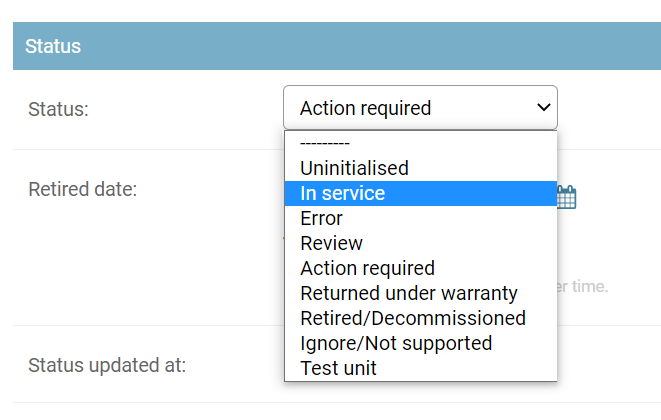
Change the Status to "In service" if the issue does not require device replacement, or one of the other relevant codes as required.
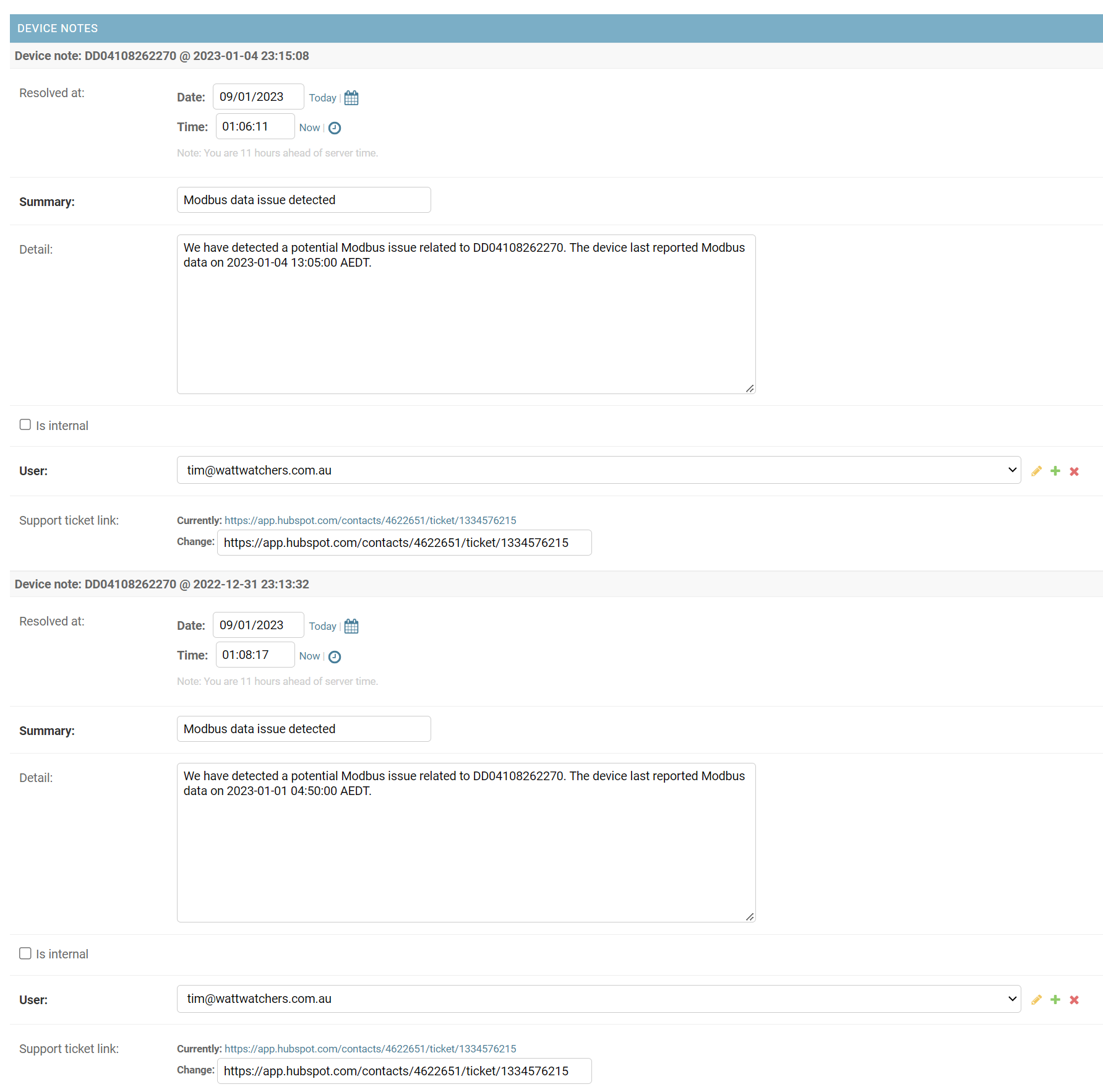
In the Device Notes section to set the Resolved at time to the current time and any notes from the resolving user.
- Set the Resolved at field using the "Today" and "Now" buttons to set the current date and time. Alternatively, the manual date and time value can be entered or selected if required.
- Add any additional comments to the Detail field but always treat these as potentially visible to the customer.
- Set the User field to your Wattwatchers system username.
- Set the Support ticket link field to a URL corresponding to the support ticket.
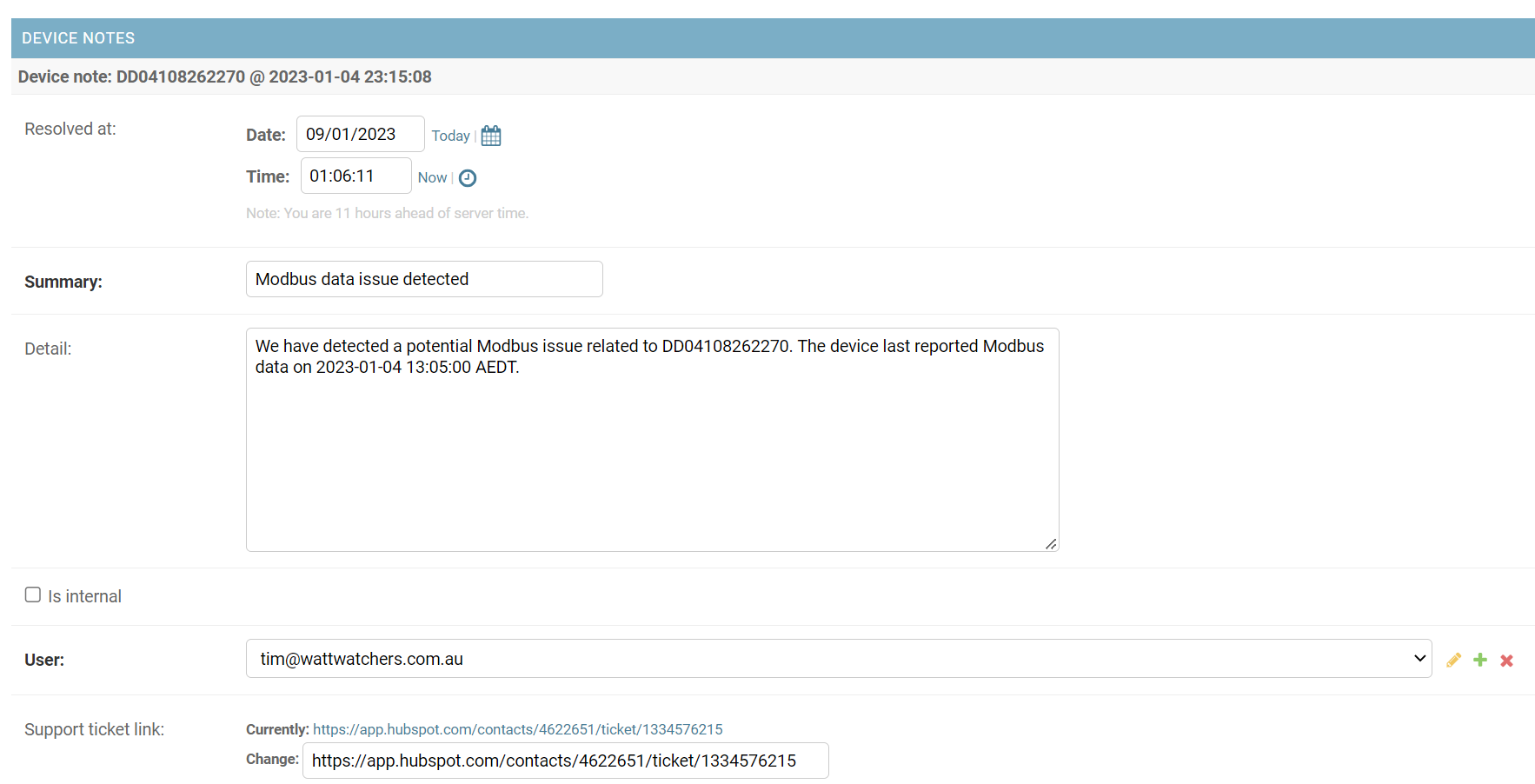
Make sure to SAVE any changes in Django before navigating away from the Fleet Devices view.
Note that all Device Notes must have a "Resolved at" value set to completely clear the device back to the OK state without any alert icons in the Fleet manager view.
Use the same process above to close any any other open Device Notes.
In the following example, this device had two Modbus alerts early in January 2023 that needed to be Resolved to fully clear the alert icons.